Changing the dimensions of a picture sounds simple until a form asks for "3.5 × 4.5 cm at 300 DPI" or a platform wants exactly 1200 × 628. This resizer speaks all of those languages: pixels, percent, centimetres and inches.
Open an image, type the size, and download the result. The work happens on your own device, so large photos are not sent anywhere.
Before and after
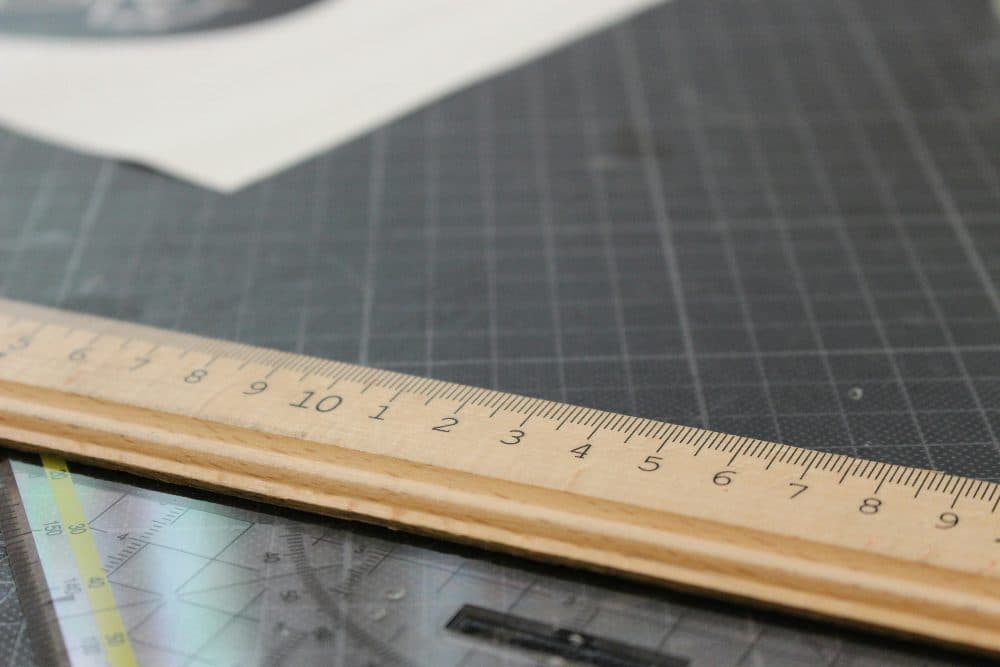
4032 × 2688 px1.31 MBJPG
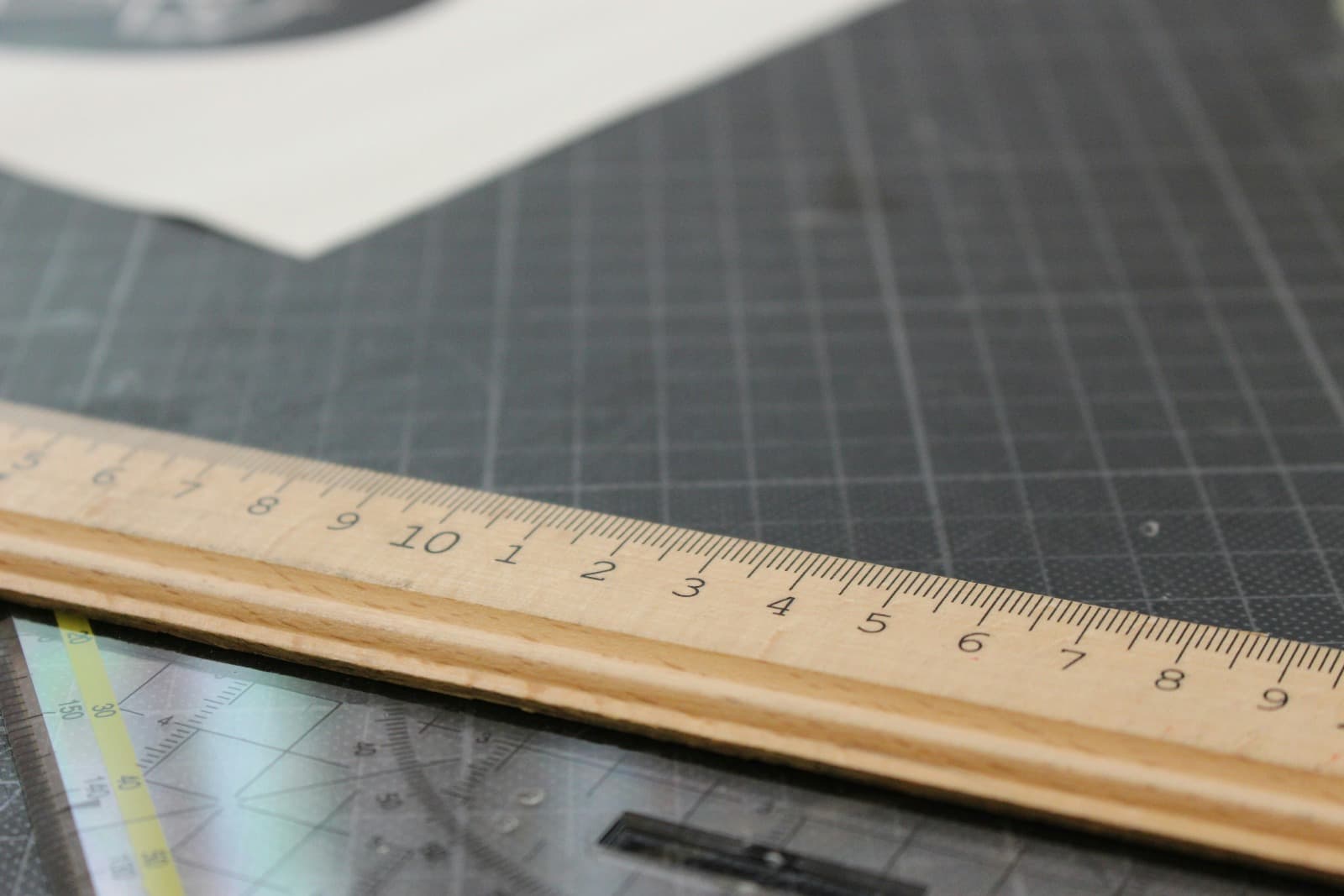
1600 × 1067 px277 KBJPG
The 4032 × 2688 px photo was scaled to 1600 × 1067 px. The shape stays the same and nothing is cut off.
The file went from 1.31 MB to 277 KB.
The image on the right is the actual file the tool above produced.
How to use it
- Add an image using the box above.
- Pick a unit. For cm or inches, also set the DPI your printer or form specifies (300 is the usual print value).
- Enter the width, the height, or both. Leave the aspect ratio locked to avoid distortion.
- Press Resize and download the new file.
Pixels, DPI and physical size
An image file only contains pixels. Centimetres and inches come into play when it is printed, and DPI (dots per inch) is the conversion rate. At 300 DPI, one inch is 300 pixels, so a 2 × 2 inch photo is 600 × 600 pixels and a 3.5 × 4.5 cm photo is 413 × 531 pixels. The tool does this arithmetic for you.
When the shape does not match
If you ask for a width and height whose ratio differs from the original, something has to give. With the aspect ratio locked, the image is fitted inside the box you typed and one side comes out shorter. With it unlocked you choose between cropping the overflow from the centre, which keeps proportions natural, and stretching, which keeps every pixel but distorts the picture.
Making images larger
You can enlarge as well as shrink, but enlarging cannot invent detail. Going up by 20 to 50 percent is generally fine; doubling a small image makes it visibly soft. Outputs are capped at about 16 megapixels so the tool stays stable on phones.
Frequently asked questions
- What DPI should I use?
- Use the figure in your instructions if one is given. Otherwise 300 DPI is the standard for photo prints and official documents, and 96 or 72 is common for on-screen use.
- Does resizing reduce the file size?
- Shrinking the dimensions normally shrinks the file too, but not to a specific number. If you have a KB limit to meet, resize first and then run the result through the compressor.
- Which format will the resized image be in?
- JPG, PNG and WebP files keep their format. Other inputs such as HEIC are saved as JPG, and the result card tells you when the format has changed.
- Will my portrait photo end up sideways?
- No. The orientation recorded by your camera is applied before resizing, so the output is upright in every viewer.