iPhones have saved photos as HEIC since iOS 11. The format halves the storage a picture needs, but plenty of things still cannot open it: older Windows PCs, many websites’ upload forms, some printers and photo kiosks. JPG has no such problem.
Drop a .heic file here and you get a JPG back. The conversion is done on your device; the photo is not transmitted to us or anyone else.
Before and after
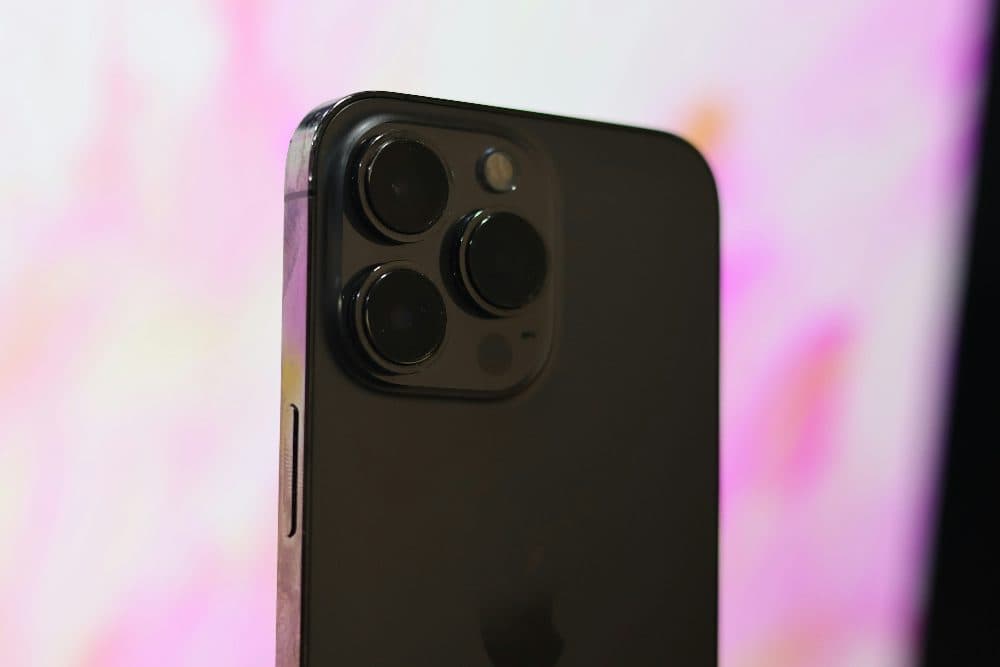
4032 × 2688 px490 KBHEIC
4032 × 2688 px599 KBJPG
The picture and its 4032 × 2688 px size stay the same. Only the file changes: HEIC at 490 KB in, JPG at 599 KB out.
JPG is an older format than HEIC, so the same picture needs more space.
The numbers are from a real run of the tool above. The pictures here are smaller previews of the actual files.
How to use it
- Add a HEIC or HEIF photo using the box above.
- The first time, a small decoder is loaded; after that the conversion starts right away.
- Download the JPG. Drop another file to convert the next one.
What happens to quality and size
The JPG is saved at high quality, so the picture looks the same as the original on screen. Because JPG is a less efficient format, the file will typically be about twice as large as the HEIC. If you need it smaller, lower the quality setting or run the result through the compressor.
Privacy of converted photos
Phone photos carry hidden metadata, including GPS coordinates of where they were taken. The JPG produced here is built from the pixels alone, so that metadata, location included, is left out. That is useful when the picture is headed for a public listing or a forum. Rotation is applied to the pixels first, so the image still appears the right way up.
Stopping HEIC at the source
If you would rather not convert at all, open Settings on the iPhone, go to Camera, then Formats, and choose Most Compatible. New photos will be saved as JPG, at the cost of more storage per shot.
Frequently asked questions
- Why does the first conversion take longer?
- Most browsers other than Safari cannot read HEIC themselves, so a decoder is fetched the first time you add a HEIC file. It is cached afterwards, and your photo still never leaves the device.
- Can it convert Live Photos or HEIC with several images?
- The main still image is converted. The motion part of a Live Photo is a separate video file and is not included.
- My HEIC photo is 48 megapixels. Will it work?
- Very large photos are reduced to about 16 megapixels so they can be processed on a phone. You will see a note when that happens. If the device runs out of memory, an error message is shown instead of a broken file.
- Does this work on Android and Windows?
- Yes. Any current browser works, including Chrome, Edge and Firefox on Windows, Android, macOS and Linux.