When an upload field reads “JPG/JPEG, maximum 20 KB”, it is asking for two things at once: a particular format and a particular weight. The format part is usually already met, because phone cameras and scanner apps save JPEG by default. The weight is the problem. A signature photographed on a phone often weighs 1 to 3 MB, so it has to lose more than 98% of its bytes before the form will take it.
JPEG is built for exactly that kind of cut. Its quality setting can be turned down one notch at a time, and each notch trims the file a little, so the tool can walk the dial until the picture sits just under 20KB. Starting with your original JPEG rather than a copy that was already squeezed by a chat app gives the cleanest result, and if your file is already light enough the page tells you so instead of re-saving it.
Before and after
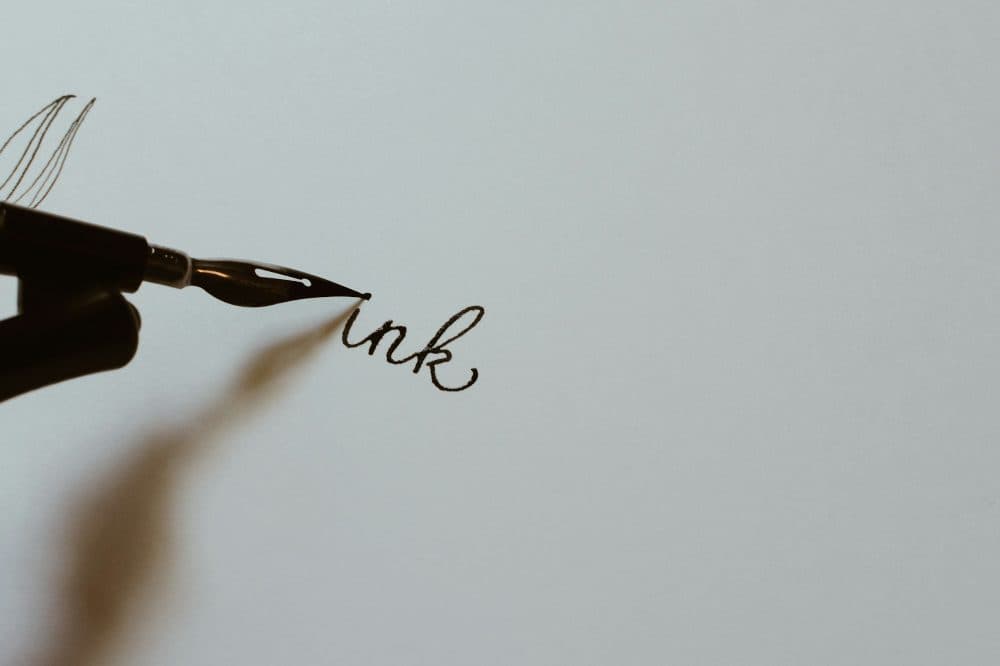
2400 × 1598 px272 KBJPG
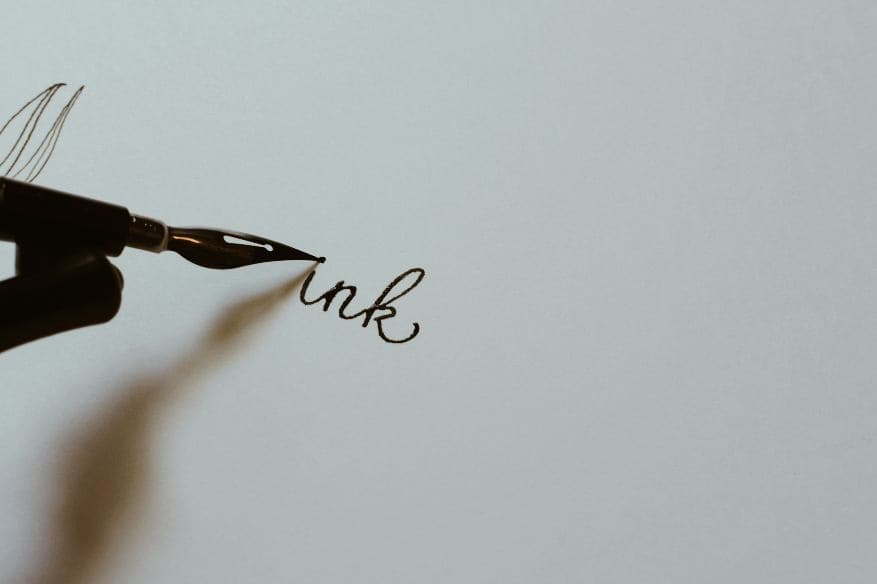
877 × 584 px19.9 KBJPG
This photo was 272 KB. With the limit set to 20 KB, it came out at 19.9 KB, which is 93% smaller.
To fit, the tool also scaled the picture down from 2400 × 1598 px to 877 × 584 px.
The image on the right is the actual file the tool above produced.
How to use it
- Open the JPEG straight from your camera roll or scanner app, not a forwarded or downloaded copy, since every earlier save has already thrown detail away.
- Wait while the quality dial is lowered step by step. If even a low setting cannot reach 20KB, the picture is shrunk a little and the dial is tried again.
- Read the weight and the width × height on the result card and hold them against the numbers in your form’s instructions.
- Save the .jpg. Where the field also has a floor, such as 10 KB, tick the minimum box under the size field, type the floor and let it run once more.
Why JPEG is the format to use at 20KB
JPEG is lossy on purpose. It splits the picture into 8 × 8 pixel tiles and stores each tile as a blend of smooth patterns, keeping fewer of the fine ones as the quality goes down. That is why a byte limit can be hit precisely: the quality number is a dial for weight. PNG has no such dial. It keeps every pixel exactly, so its size is set by what is in the picture, and a photo of a face saved as PNG typically weighs several times its JPEG equivalent. Converting a JPEG to PNG to make it “cleaner” before uploading usually makes it heavier, not lighter.
The trade-off shows up on hard edges. Pushed too far, JPEG leaves faint halos around dark ink strokes and turns flat areas into visible tiles. A signature rarely gets there at 20KB, because white paper costs almost nothing to encode; a colour face photo does, which is why the tool reduces pixels rather than going below a usable quality. Phone JPEGs also carry camera data, and often a small preview image tucked inside, that can take several kilobytes of a 20KB budget. All of that is dropped here, GPS position included, so every byte goes to the picture you are submitting.
Forms that ask for a JPEG of 20 KB
These official notices name the format and the 20 KB ceiling together. Staff Selection Commission (CGL, CHSL, MTS, Constable GD, Stenographer, JE): scanned signature, 10 KB–20 KB, JPEG/JPG, about 6.0 cm (width) x 2.0 cm (height). IBPS (PO, CSA, SO, RRB) and SBI (PO, Junior Associates): signature, 10 KB–20 KB, JPG/JPEG, 140 x 60 pixels (preferred). TNPSC Group II and IIA: signature, 10 KB–20 KB, JPG. Protean (formerly NSDL e-Gov) PAN Form 49A / 49AA: colour JPEG photo, 20 KB maximum, 3.5X2.5 cms at 200 DPI.
Almost every signature field in that list also refuses files under 10 KB, and a neat black-on-white signature can land below that after compression. The minimum switch lifts the JPEG quality first and, only if that falls short, enlarges the picture until the weight is back inside the band. Where a fixed pixel size is given, such as 140 x 60, make that size with the resize tool first; at such small dimensions the JPEG is often well under 20KB already.
Frequently asked questions
- Can I compress a JPEG to 20KB without losing quality?
- Not without losing any. Getting a multi-megabyte JPEG under 20KB always discards detail. What the tool does is keep the highest quality setting that still fits, so the loss is as small as the limit allows. A signature usually looks unchanged; a full photo gets fewer pixels rather than visible blocks.
- My JPEG is already 17KB. Should I compress it again?
- No need. If the file is under 20KB when you add it, the page says so and offers to keep your original as it is. Re-saving a JPEG is never free: each new save loses a little more detail, so leave a file alone once it fits.
- The form wants 10 KB to 20 KB. How do I stay above 10?
- Tick “My form also has a minimum size”, enter 10 and run the file again. The JPEG quality is raised, and the picture enlarged up to three times if needed, until the result sits between the two figures. If the picture is too plain to reach 10 KB even then, the page tells you rather than handing over a file that will be refused.
- Can I add a PNG or an iPhone photo here instead of a JPEG?
- Yes. The file picker suggests JPEG, but PNG, HEIC, WebP and other common images are read too, and every result is written as a genuine JPEG with the .jpg ending. That matters because renaming a PNG to .jpg does not change what is inside it.
- Why do the ink lines of my signature look fuzzy after compressing?
- Usually because the paper in the photo was grey or shadowed, so the JPEG spent its bytes on the background and lost sharpness on the strokes. Photograph the signature again in daylight on plain white paper, crop close to the ink, and compress the new shot.
- Can I set the width and height on this page?
- No. Here the dimensions follow from the 20KB weight. If your notice states pixels or centimetres, set them in the resize tool, then bring the file back only if it still weighs more than 20KB.