A JPG has been through a compressor once, in the camera or app that saved it. To compress JPG again is to encode the same picture a second time with coarser rounding and, if the limit demands it, fewer pixels. You never pick the quality number here: you type the size a form or a mail service accepts, and the search finds the highest setting that lands under it.
The figures below were measured on real photos: what each quality step costs in bytes, why coloured detail softens first, when a second save does real harm, and where fewer pixels at a gentle setting beat full size at a harsh one.
Before and after
2400 × 2400 px1.25 MBJPG
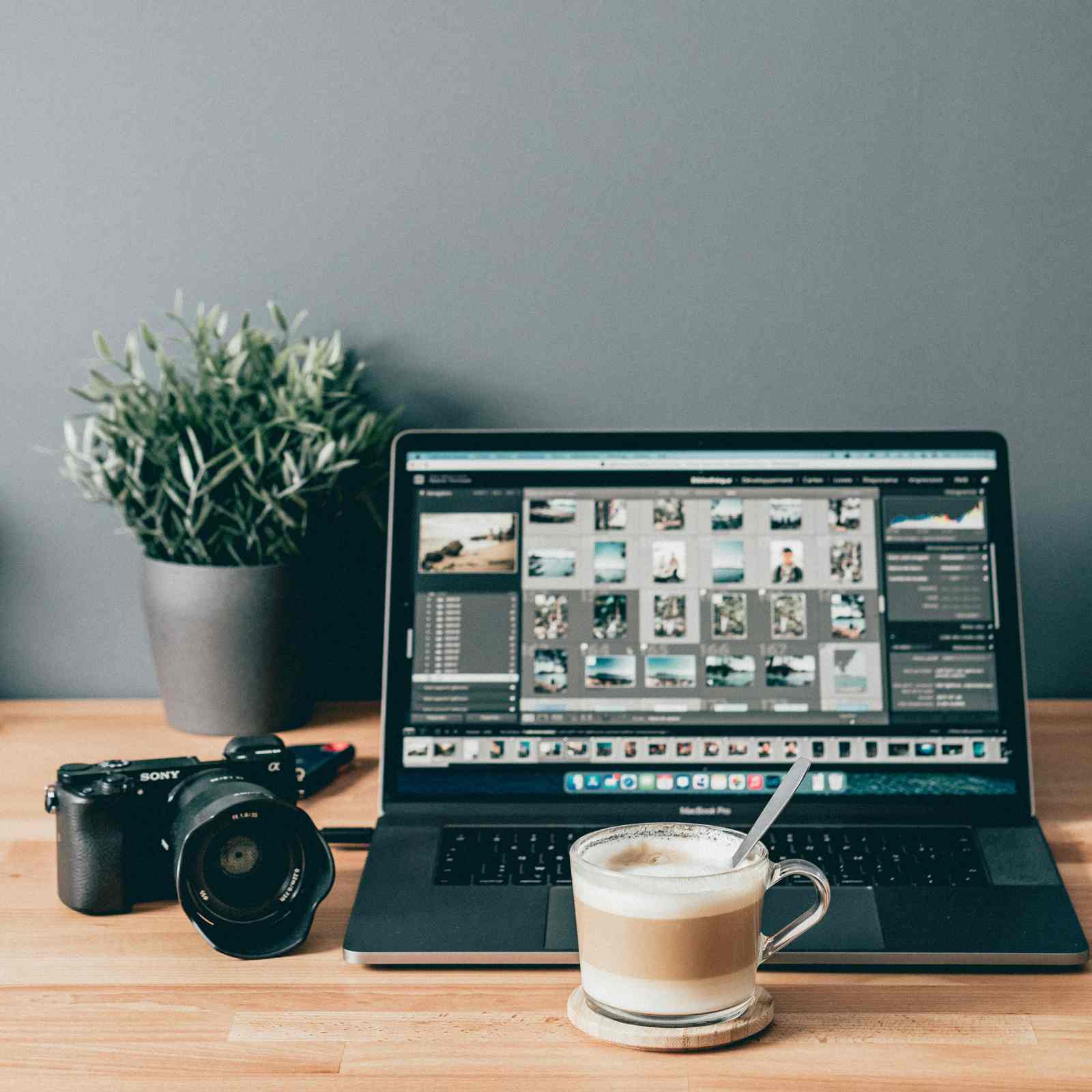
1600 × 1600 px98.8 KBJPG
This photo was 1.25 MB. With the limit set to 100 KB, it came out at 98.8 KB, which is 92% smaller.
To fit, the tool also scaled the picture down from 2400 × 2400 px to 1600 × 1600 px.
The image on the right is the actual file the tool above produced.
How to use it
- Type the ceiling into “Maximum file size” and choose KB or MB with the chips, matching the unit the form or mail rule uses.
- If a floor is printed too, tick the box “My form also has a minimum size” with the floor typed below it; a 50 KB to 100 KB rule becomes a window to land inside.
- Add the JPG and tap Compress. Several qualities are tried, the highest that fits is kept, and pixels are reduced only when quality 30 is still too heavy.
- Check the new weight and pixel size on the card, zoom into the download once, and if edges look rough while the rule has room, type a bigger number.
What the quality number does to the bytes
The JPG scale runs from 1 to 100, but it is not the share of the picture that survives. It sets how coarsely the fine detail in each small tile is rounded off, and coarser rounding means fewer bytes. Phones save at about 90 to 95. Re-encoding the same pixels at 85 typically leaves three quarters of the size, at 70 a third to a half, at 50 about a quarter. A 4000 × 3000 phone JPG of around 3 MB usually comes out near 1 MB at quality 70 with every pixel in place; busy scenes land higher, plain ones lower.
The scale is a trap in the other direction. Saving a file made at 80 again at 100 can double its weight without restoring anything the first save removed. That is why a JPG already under your number is left untouched: the page says so and lets you keep the original.
The search tries 95 and 30 first, then narrows between them, because below 30 flat areas turn into visible squares and dark edges grow halos. When even 30 is too heavy, the width and height come down a step and the search repeats.
Why colour softens before brightness
A JPG does not store red, green and blue side by side. Brightness goes in one channel and colour in two others, and most encoders, phone cameras included, keep the colour at half resolution in each direction, so one colour value covers a block of four pixels. In a face or a landscape the eye never notices.
It shows on fine coloured detail: red lettering on a sign, a thin blue rule on a printed form, a bright logo on a dark shirt. Those edges go soft and muddy before anything else changes. A black signature on white paper is nearly all brightness and survives a low setting; a stamp in red ink suffers first.
When a second save does harm, and when to resize instead
Saving a JPG again at the setting it already has changes very little, because the rounding falls in the same places; thirty saves of one test photo at a fixed quality looked the same as one. The harm comes when each save uses a different setting, or when the picture is cropped, rotated or scaled in between so the tile grid no longer lines up. A photo forwarded through two chat apps has had that treatment, so start from the camera roll.
Fewer pixels can be the better trade. On a test photo, 1600 × 900 at quality 60 and 1200 × 675 at quality 85 weighed about the same, and the smaller one had cleaner edges. If your figure would push the quality under about 60 and no pixel rule forbids it, resize first and compress the smaller picture gently. Fixed limits such as 20KB, 50KB, 100KB, 200KB, 1MB and 2MB have preset pages; this page suits odd ones such as 150 KB or 4 MB and rules with a floor and a ceiling.
Frequently asked questions
- Can I compress a JPG without losing quality?
- Not strictly. Every JPG save rounds detail away; a smaller file means coarser rounding. The search keeps the highest setting that fits, and at 80 or above most photos look unchanged on a phone screen.
- The page says my JPG is already under the limit. Should I compress it anyway?
- No. Re-encoding a file that already fits can only remove detail, and at a higher setting it can grow. Keep the original with the link on that card. If the form also has a floor the file falls below, tick the minimum and the quality is raised to reach it.
- What happens to a 3 MB phone photo at a 100 KB limit?
- Quality alone cannot get there; a 4000 × 3000 picture at the floor setting still weighs several hundred KB. The pixels are reduced, typically to between 1,200 and 1,800 on the long side, and the search runs again until it fits.
- Does it take a JPEG, a PNG or an iPhone HEIC?
- Yes. A .jpeg is the same format as a .jpg. PNG, WebP, HEIC and AVIF are read as well and written out as a JPG; transparent parts turn white and the camera data is dropped.
- The portal wants a PDF under 100 KB, not a JPG. Is this the right page?
- No. The result here is always a JPG. For a PDF with a size cap, use the JPG to PDF pages, which place the pictures on A4 pages and compress to the limit in one step.