Some application forms have no separate boxes for the photograph and the signature. They ask for one picture that shows both: the face at the top and the candidate’s own signature in a strip directly under it, as if the photo had been pasted on paper and signed below. If you have the two as separate files, a selfie from your phone and a signature snapped on white paper, they need to become a single image before the portal will take them.
This page joins them in a column. Put the photo first in the list and the signature second, and the merge lays them edge to edge at a shared width. What comes out is the combined image; the sections further down explain how to bring it to the 3.5 cm by 6.0 cm, 50 KB shape that the best-known combined fields ask for.
Before and after

2400 × 1600 px299 KBJPG
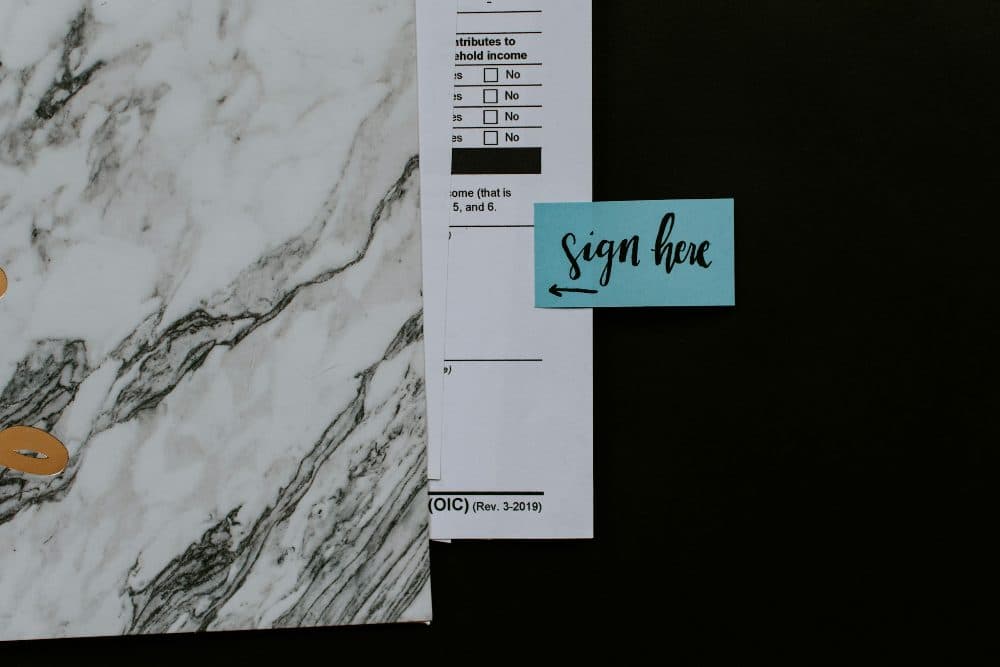
2400 × 1600 px380 KBJPG
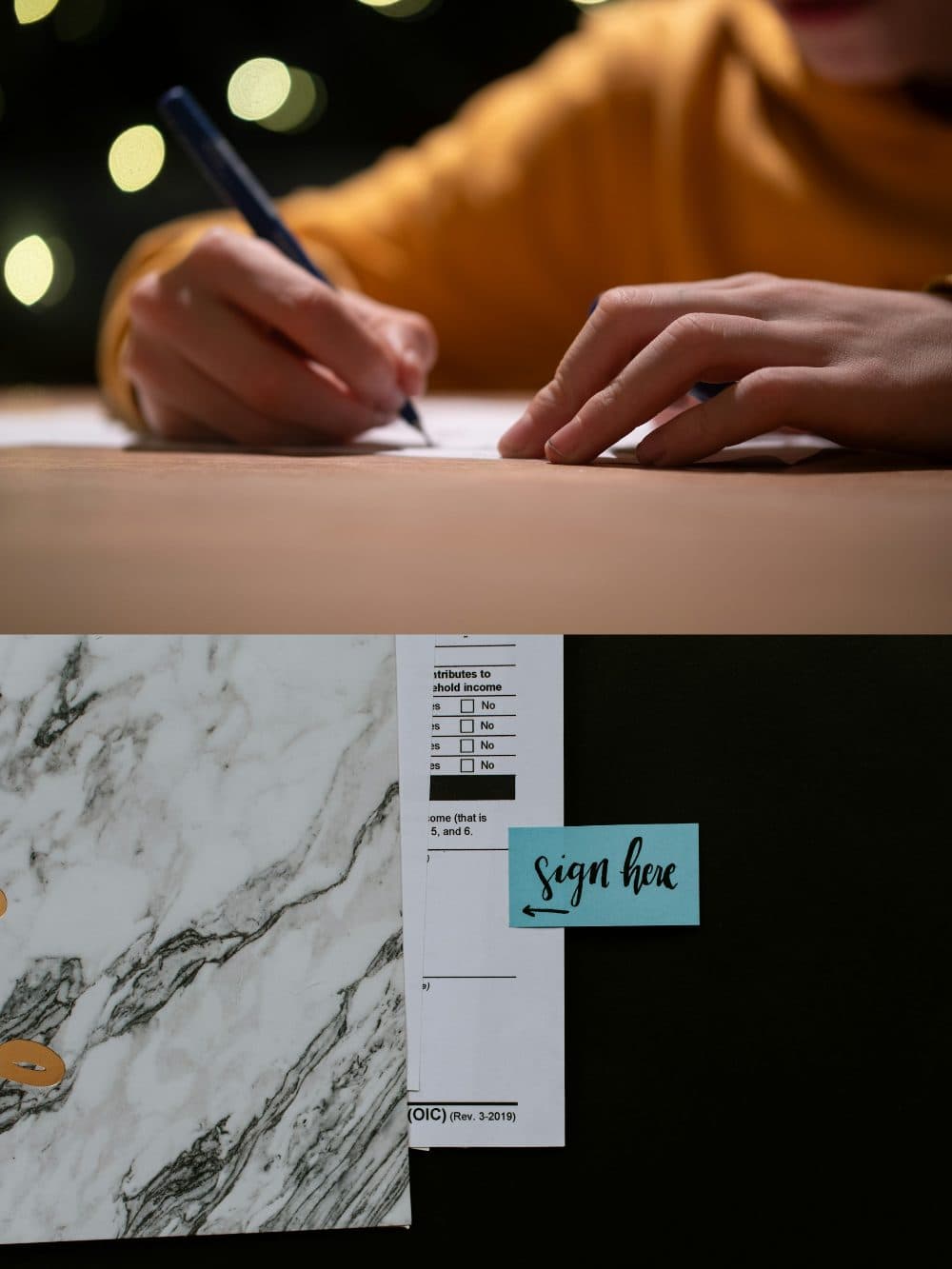
2400 × 3200 px770 KBJPG
Two 2400 × 1600 px photos were joined top to bottom into one 2400 × 3200 px image of 770 KB.
The numbers are from a real run of the tool above. The pictures here are smaller previews of the actual files.
How to use it
- Pick both files at once, or add the photo and then the signature. HEIC photos from an iPhone are read as they are.
- Look at the numbered list: the photograph must be number 1. If the signature landed on top, tap its up arrow.
- Leave the direction on Vertical and the gap at 0 so the signature sits right under the photo, then press Merge.
- Save the stacked JPG, then size it in centimetres and check its weight as described below before uploading.
Forms that want photo and signature as one image
The Uttar Pradesh Public Service Commission (UPPSC) application, in its Appendix-1 instructions, asks for the photograph pasted on white paper with the signature in the box beneath it, scanned as a single image of 3.5 cm by 6.0 cm and not more than 50 KB, in jpg, jpeg, gif, tif or png. It also wants the full signature, not written in capital letters.
The exam application portal run by the National Informatics Centre (pariksha.nic.in), used by several state examination bodies, describes the same single image of photo with signature: 3.5 cm by 6.0 cm, scanned at 200 DPI in true colour, at most 50 KB, saved as jpe, jpeg or jpg. At 200 DPI those centimetres work out to about 276 × 472 pixels, which is the pixel size to aim for when you have no scanner.
From two files to a 3.5 × 6.0 cm upload
The merge keeps each part’s proportions and scales both to the narrower of the two widths, so the stacked shape depends on what you feed it. Crop first and the rest is easy: the photo to roughly 3.5 by 4.5 (portrait, head and shoulders) and the signature to a wide strip about 3.5 by 1.5. Those two add up to 3.5 by 6.0, so the column comes out close to the right shape. A tightly cropped signature also stops the photo shrinking, because a narrow signature scan pulls the photo down to its width.
Next, open the resize tool in centimetres, type 3.5 wide and 6.0 high with 200 DPI, untick Lock aspect ratio and choose Crop to fill. Any small mismatch is trimmed evenly from the top and bottom edges, and the DPI is written into the file. A 276 × 472 JPG is normally well under 50 KB already; if it is not, the 50KB compressor will bring it down without changing the layout.
Frequently asked questions
- Which goes on top, the photo or the signature?
- The photo. Both instruction sets quoted on this page put the photograph above and the signature beneath it. The order in the file list is the order from top to bottom, so check that the photo shows as number 1 before you merge.
- Will this write my signature over the photo?
- No. The two pictures sit one above the other and never overlap. Combined upload fields want the signature in its own space below the face, so placing it across the photo would defeat the purpose.
- Why did my photo come out smaller than the original?
- A vertical merge gives both parts the same width, and that width is the narrower one. If the signature file is only a few hundred pixels across, the photo is scaled down to match. That is usually fine, since the final upload is about 276 pixels wide anyway.
- Can I get a PDF instead of an image?
- No. The combined file is a JPG, or a PNG if you switch the format chip. Both combined-field instructions quoted above list only image formats, such as jpg, so a PDF is not what they expect.
- Should I add a gap between the photo and the signature?
- Only if the two run into each other. A gap of 10 to 20 pixels adds a white band, much like the margin between a pasted photo and the signature box on paper. Keep it small, because it uses part of the 6.0 cm height.
- My signature photo has a grey background. Does that matter?
- It looks untidy in the strip and adds weight to the file. Retake it on plain white paper in daylight, or crop it tightly so only the ink and a little white margin remain, before merging.