India Post’s Gramin Dak Sevak form takes two uploads, a recent photograph and a scanned signature, and the current notification gives each one a band rather than a single ceiling: the photo must weigh between 30 KB and 100 KB, the signature between 20 KB and 100 KB, both as JPG or JPEG. A phone photo sits far above the top of that band and a clean signature scan often falls below the bottom of it, so one upload tends to fail for being too heavy and the other for being too light.
This page is preset to the photo band. Add the picture and it comes back as a JPG no heavier than 100KB and no lighter than 30KB, with nothing to type. For the signature, change the minimum from 30 to 20 and run it again. The notification also recommends pixel sizes, 320 × 400 for the photo and 300 × 120 for the signature; those are a job for the resize tool, as explained further down, and are not enforced here.
Before and after
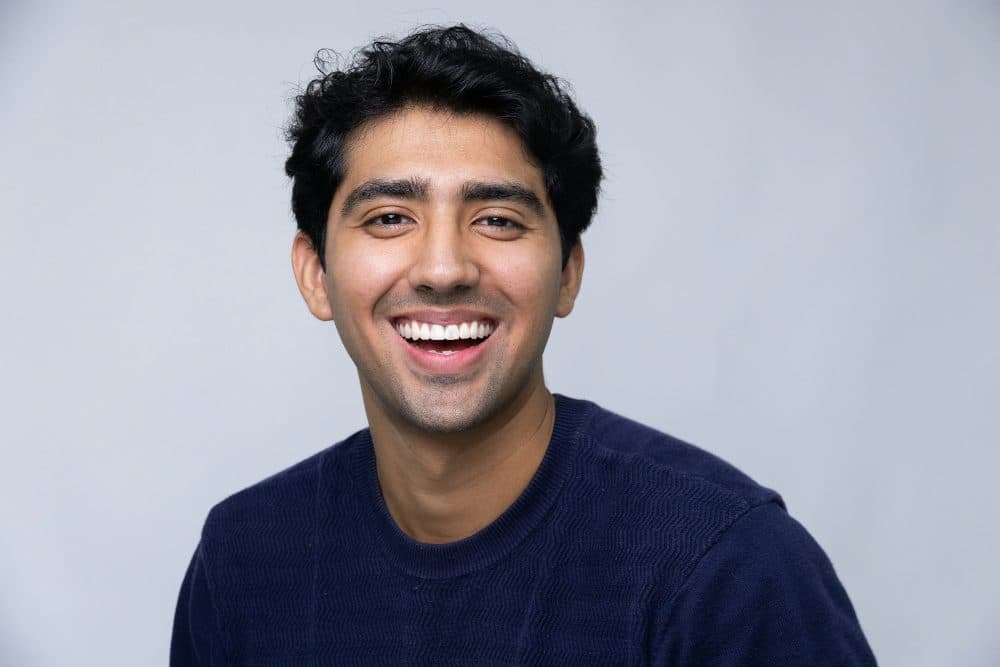
2400 × 1600 px418 KBJPG
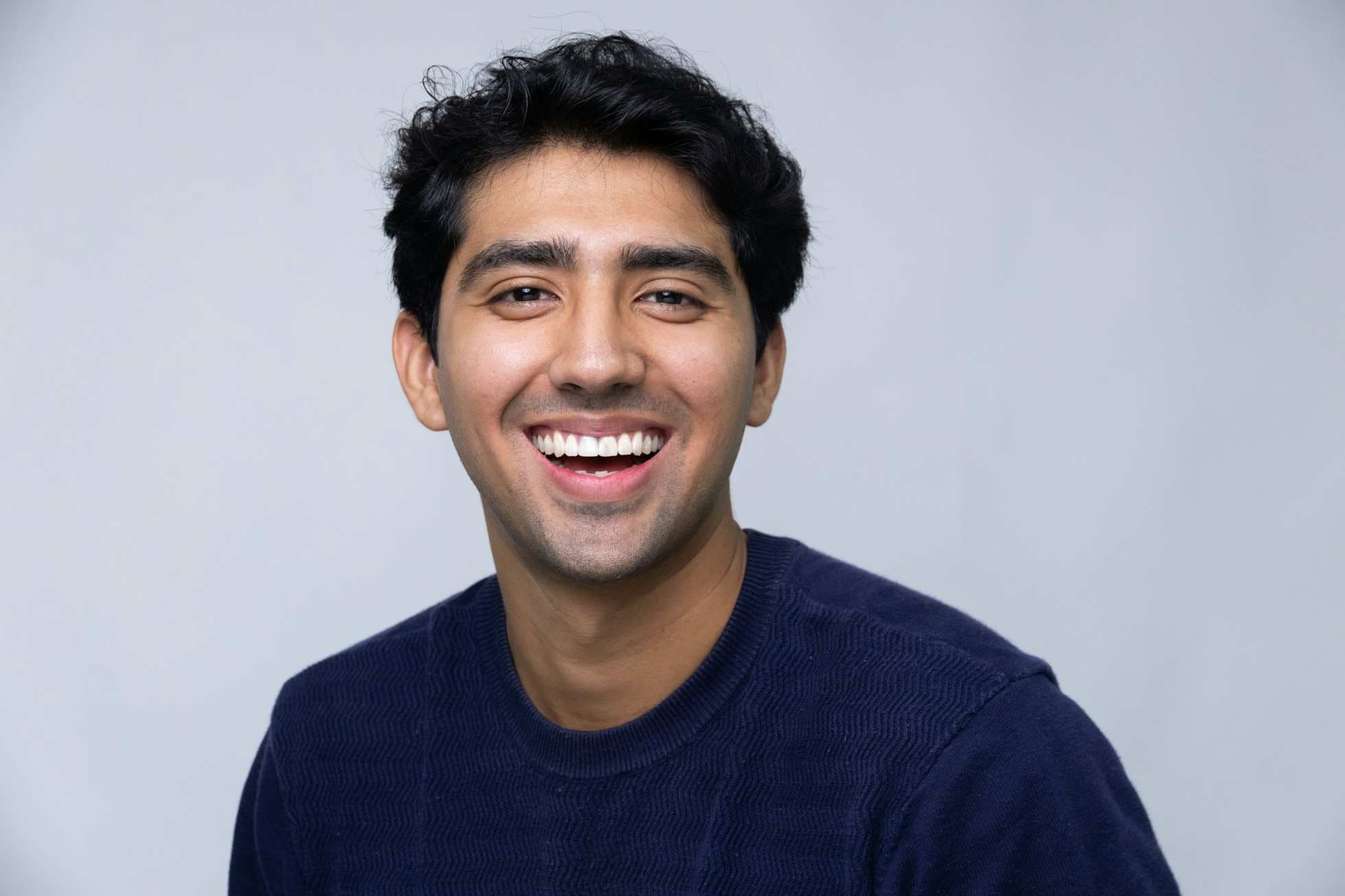
1960 × 1306 px98.8 KBJPG
This photo was 418 KB. With the limit set to 100 KB, it came out at 98.8 KB, which is 76% smaller.
To fit, the tool also scaled the picture down from 2400 × 1600 px to 1960 × 1306 px.
The image on the right is the actual file the tool above produced.
How to use it
- Take the photo against a plain white or light wall in daylight, face the camera straight on, and crop it in your phone’s editor so your face fills most of a portrait-shaped frame.
- Add it here. The 100KB limit and the 30KB minimum are already filled in, so the JPG is made as soon as the file arrives; check that the result card reads between 30KB and 100KB, then download it.
- Sign on white paper with a black or blue pen, photograph or scan it, and crop to a wide strip around the ink. Change the minimum size box on this page to 20, then add the signature picture.
- Download the second JPG, name the two files so you can tell them apart, and look at both previews on the portal before submitting: the notification puts that final check on the candidate.
What the Schedule-II notification asks for
Notification No. 17-12/2026-GDS of 20 August 2026 (Schedule-II, July-2026) sets the rules in its paragraph 5. Photograph: JPG/JPEG only, 30 KB to 100 KB, recommended 320 × 400 pixels, aspect ratio 4:5, DPI 72 to 150, a plain white or light-coloured background, the face occupying 70 to 80 per cent of the image with no shadows or red-eye, and no scanned photos or selfies. Signature: written on white paper with a black or blue pen, JPG/JPEG only, 20 KB to 100 KB, recommended 300 × 120 pixels, aspect ratio 5:2, DPI 72 to 150, the signature taking up 70 to 80 per cent of the frame, with no typed or digital text and no shadows, borders or extra marks.
The note under those rules says applications with blurred photographs, or with blurred or miniature signatures, will be rejected, and that the candidate must verify the preview after uploading. The older portal at indiapostgdsonline.gov.in still shows a photo not exceeding 50kb and a signature not exceeding 20kb; that page now announces that it is no longer active, and those figures belong to earlier cycles. The two sets of numbers do not line up, so follow the notification of the schedule you are applying in rather than a figure remembered from a previous one.
Pixels, DPI and the minimum size
The 320 × 400 and 300 × 120 figures are labelled recommended, and the notification’s own cropping tip offers 240 × 300 as an alternative for the photo, so the shape matters more than the exact count: 4:5 for the photo, 5:2 for the signature. To match a figure exactly, open the resize tool, enter 320 and 400 (or 300 and 120) in pixels with Crop to fill, and bring the result back here only if it falls outside the KB band. At those pixel sizes a JPG usually lands inside the band on its own.
The DPI range of 72 to 150 is the one rule this page does not touch: it writes a plain JPG with no density tag. If the portal preview objects to the resolution, stamp 150 DPI onto the file with the DPI tool; the pixels and the weight stay as they are. The minimum is the other trap. Dark ink on clean paper can compress to 10KB or less, which is under the 20 KB floor for the signature, so the tool raises the JPG quality, and if that is not enough the pixel size, until the file crosses the line. If it reports that a scan is too plain to get there, rescan the signature larger rather than adding blank paper around it.
Frequently asked questions
- Is the GDS photo limit 50 KB or 100 KB?
- For Schedule-II, July-2026 it is a band of 30 KB to 100 KB, from paragraph 5 of the notification dated 20 August 2026. The 50 KB figure comes from the old portal page, which now says it is no longer active. Read the notification for your own schedule before you upload.
- How do I do the signature on this page?
- Change the number in the minimum size box from 30 to 20, keep the maximum at 100, and add the signature picture. It comes back as a JPG between 20KB and 100KB. Crop to a wide strip around the ink first so the signature fills most of the frame, as the notification asks.
- Does the photo have to be exactly 320 × 400 pixels?
- The notification calls that size recommended and even suggests 240 × 300 as another 4:5 option, so the shape is what to get right. Use the resize tool with Crop to fill for an exact figure, then check the weight here if it needs it.
- Can I upload a selfie or a scan of a printed photo?
- The notification says to avoid both. It wants a recent, clear, well-lit photograph against a plain background with your face taking up 70 to 80 per cent of the frame. Have someone take it on a phone at eye level, or use the file from a studio.
- Why did my signature come back larger in pixels than the scan I added?
- It weighed less than the 20 KB floor, so the tool raised the quality and then enlarged it until the file reached the minimum. Nothing else changes: the strip keeps its shape and the strokes are the ones you scanned.
- Does the photo need my name and the date printed on it?
- No. The GDS notification does not ask for a name or date on the photograph; that rule belongs to some other recruitments. It asks for a plain background, no shadows or red-eye, and a face that fills most of the frame.